
Woo Commerce: Issue products not syncing with FB store!!!

WooCommerce: Issue products not syncing with FB store

WooCommerce: Products Not Syncing With Your Facebook Store — Here’s the Fix
If you have ever imported products into WooCommerce and then watched them either fail to sync with your Facebook store entirely — or sync incompletely, where the master product appears but the variations do not — you are not alone. This is one of the most common and most frustrating WooCommerce-Facebook integration issues, and the good news is it almost always comes down to a few fixable configuration errors.
Here is what causes it and exactly how to fix it.
The Root Causes
When products fail to sync properly with your Facebook store, the problem is almost always one — or a combination — of the following:
- Product data is not set correctly
- The parent image setting is not selected
- Product attributes are misconfigured
- Variations are not properly assigned
Work through each of these in order and your sync issue will almost certainly be resolved.
Step-by-Step Fix
Step 1 — Check and correct your Product Data settings. Open the product in WooCommerce and make sure the Product Data type is set correctly — Simple Product, Variable Product, and so on. An incorrect product type is one of the most common reasons Facebook refuses to sync properly.

Step 2 — Enable “Use Parent Image.” Make sure the Use Parent Image option is selected. Without this, Facebook may not be able to associate the correct image with your product variations during the sync.
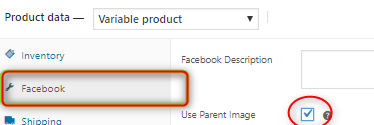
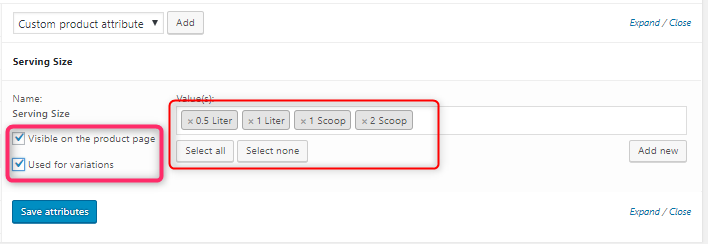
Step 3 — Set your Product Attributes correctly. This is the step most people get wrong. Follow this sequence precisely:
- First, add the correct attribute
- Then select the relevant values for that attribute
- Check the box that says “Used for variations”
- Click “Save Attributes” before moving on
The order matters. Saving attributes before assigning variations is essential.
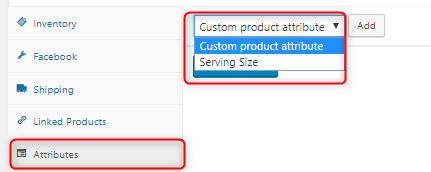
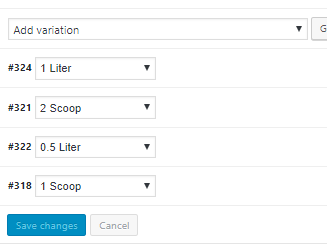
Step 4 — Assign your Variations carefully. In most cases, variations will populate automatically after Step 3. If they do not, you will need to assign them manually using the dropdown menus.
One important thing to know: the variation numbers appear in the dropdown in ascending order. So if your variations are numbered 318, 321, 322, and 324 — they will appear in exactly that sequence in the dropdown. Select each one carefully and do not skip any.
Once all variations are assigned correctly, click Save Changes.

Step 5 — Update the product and wait. Click Update on the product page. Then give it one to two minutes before checking your Facebook store. The sync is not always instant — a short wait is normal.
Step 6 — Verify directly on your Facebook store. Once the sync has had time to process, you can check specific products directly on your Facebook store by clicking the relevant URL in the product sidebar within WooCommerce. This lets you confirm exactly what has synced and what still needs attention.
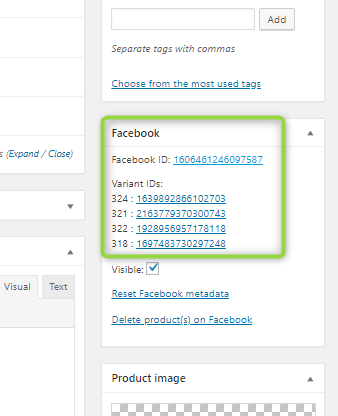
These six steps resolve the overwhelming majority of WooCommerce-to-Facebook sync issues. It is a configuration problem, not a technical fault — and once you know the correct sequence, it takes only a few minutes to fix.
Happy selling. 🙂
— Kamran Zahid, CEO, Purposelee

Responses