
How to add and remove custom keyboard shortcuts and hotkeys for a Chrome Extension in 5 seconds flat

 The Keyboard Shortcut Trick That Saves Me More Time Than You’d Think
I spend a lot of time thinking about how to eliminate friction from my work.
Not the big, obvious friction — the kind that everyone notices and complains about. The small, invisible friction. The two seconds here, the five seconds there, the tiny interruptions that individually seem harmless but collectively steal hours from your week without ever showing up on your time audit.
One of the smallest but most satisfying fixes I have found: keyboard shortcuts for Chrome extensions.
Here is the context. Around two out of three people on the internet use Google Chrome — and a big part of why is the extension ecosystem. Extensions like Obie, Loom, Grammarly, and dozens of others sit in your browser tray and genuinely make your work faster and smarter. But accessing them usually means moving your hand to the mouse, squinting at a row of tiny 16-by-16 pixel icons crammed into the top right corner of your browser, and clicking the right one — which, if you have more than five extensions pinned, starts to feel like a very unfair carnival game.
The fix is simple. Assign a keyboard shortcut to the extensions you use most — and never touch the mouse for them again.
How to Add a Keyboard Shortcut to a Chrome Extension
This takes less than a minute:
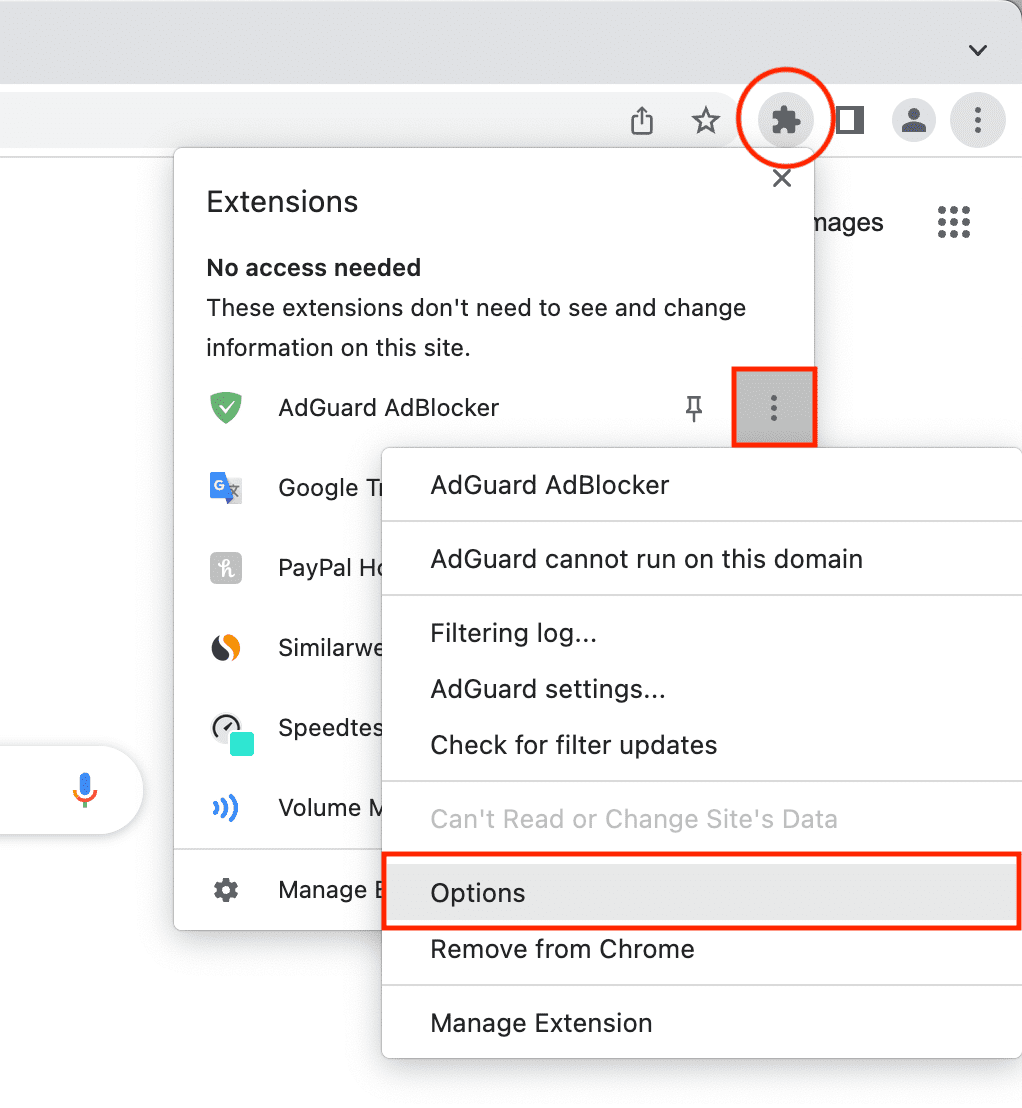
Open Google Chrome and click the three-dot menu in the top right corner. Go to More Tools, then click Extensions. On the left side panel, click Keyboard Shortcuts.
Faster option — skip all of that and just type this directly into your address bar: chrome://extensions/shortcuts
You will see a list of all your installed extensions. Find the one you want, click into the shortcut field next to it, and press your chosen key combination. Chrome requires either Ctrl + [key] or Ctrl + Shift + [key] — pick something memorable that you will not accidentally trigger while typing.
A practical example: the Obie Chrome Extension — a powerful knowledge assistant built for workplace productivity — can be launched instantly with Ctrl + Shift + O. One keystroke and it is open. No mouse, no hunting, no interruption to your flow.
Some extensions — like Loom — go further and offer additional shortcuts within the app itself. With Loom’s Chrome extension, you can pause, resume, or cancel a recording without ever taking your hands off the keyboard. Worth exploring for the extensions you use most heavily.
How to Remove a Keyboard Shortcut
Just as simple. Go back to the same page — chrome://extensions/shortcuts — find the shortcut you want to remove, and click the X next to it. Done.
These are the kinds of micro-optimisations that serious practitioners of productivity obsess over — not because any single one changes your life, but because they compound. Every shortcut you set up is a small tax you stop paying, every single day, for as long as you use that extension.
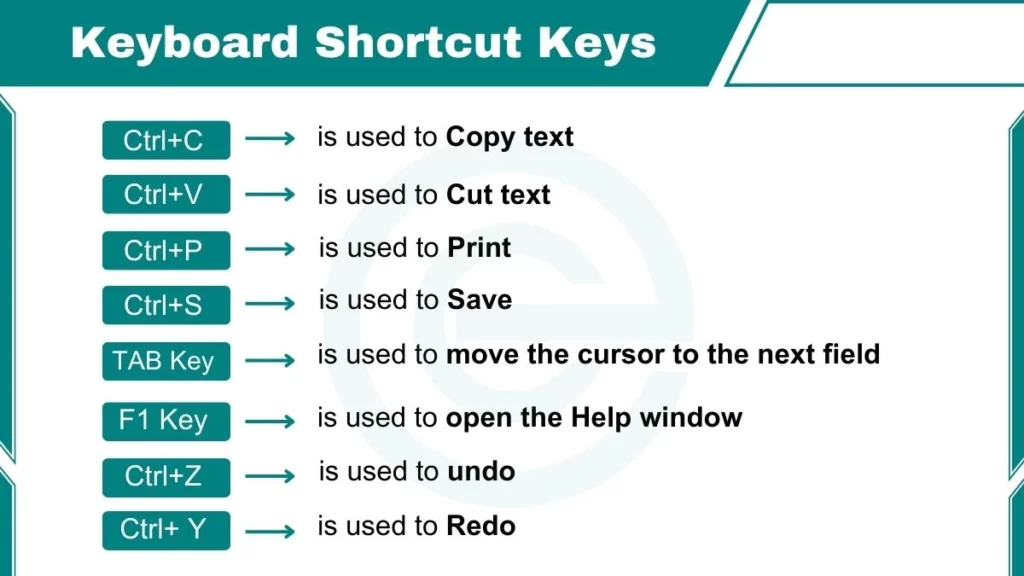
If your hands are already on the keyboard — which they almost always are — keep them there.
— Kamran Zahid, CEO, Purposelee

Responses